Get your new website on Google with Search Console
A new site does not show up on Google by itself. Here is how to tell Google it exists and check that your pages get picked up.

You launched the site, searched for it on Google, and found nothing. That's normal. Google has to discover a new site first, and that can take weeks if you leave it alone.
Search Console is Google's free tool for speeding that up. It also shows you which searches bring people to your site.
In short
- Cost: free
- Time: about 15 minutes
- You need: a live website and a Google account
What it does, and what it doesn't
Search Console lets you tell Google about your pages, see which ones are in its index, and find problems that keep pages out.
Note
It does not push you up the rankings. It shows what Google sees, so you can fix what is broken.
01Add your site
Go to search.google.com/search-console and sign in. Click Add property. You get two choices:
- Domain covers everything under your domain:
www, nowww,http,https, and any subdomain. You prove ownership with a DNS record. - URL prefix covers one exact address only. You prove ownership with a file or a tag on the site.
If you can edit your DNS, choose Domain. It's one setup that covers everything.
Tip
Still on a
.vercel.appaddress? You can't edit its DNS, so use URL prefix for now and add your real domain later. Here is how to connect your own domain.
02Prove the site is yours
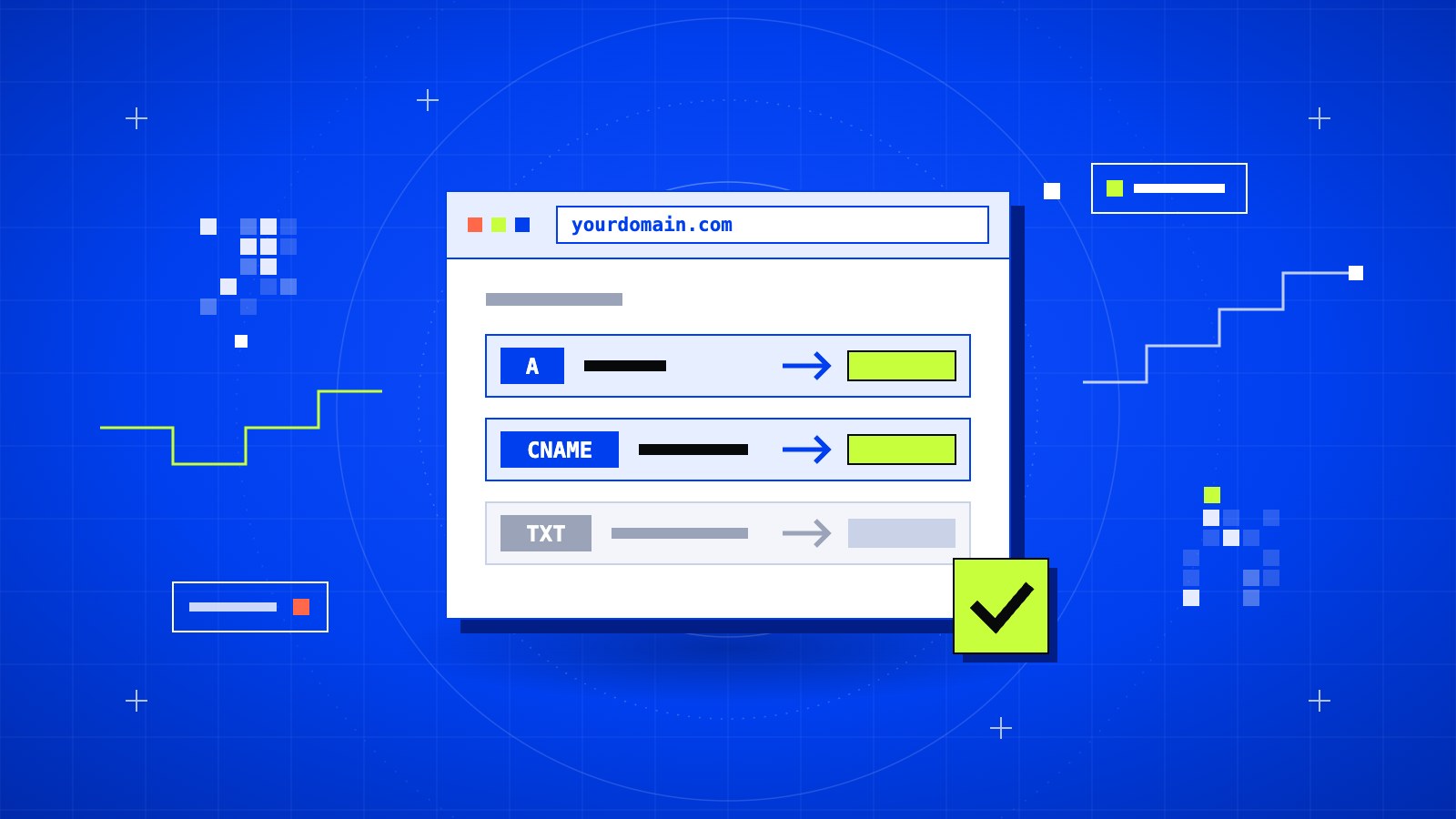
For a Domain property, Google gives you a line of text that starts with google-site-verification=.
Log in to your DNS provider and add a new record:
- Type: TXT
- Name:
@ - Value: the line Google gave you
Save it, go back to Search Console, and click Verify. If it fails, wait ten minutes and try again. DNS changes are not instant.
Keep that record in place afterwards. If you delete it, Google stops trusting that the site is yours.
03Send your sitemap
A sitemap is a file that lists every page on your site. Most sites have one at this address:
https://yourdomain.com/sitemap.xml
Open that link in your browser. If you see a list of your pages, you have one.
In Search Console, open Sitemaps, type sitemap.xml, and click Submit. The status should change to Success.
No sitemap? WordPress creates one for you, and so do most SEO plugins. On Next.js and other frameworks it takes a few lines of code.
04Ask Google to visit your homepage
Paste your homepage address into the search bar at the top of Search Console. This opens URL Inspection.
If it says the page is not on Google, click Request indexing. Do the same for your two or three most important pages. There is a daily limit, so don't try to do the whole site this way. The sitemap takes care of the rest.
05Come back in a few days
Nothing happens right away. Give it three or four days, then check two reports:
- Pages shows which pages are indexed, and why the others are not.
- Performance shows which searches your site appeared for, and how many people clicked.
Heads up
If no pages get indexed at all, check that the site is not telling Google to stay away. Look for a
noindextag in your pages, or aDisallow: /line in yourrobots.txt. Both are often left over from development.
A quick check without Search Console
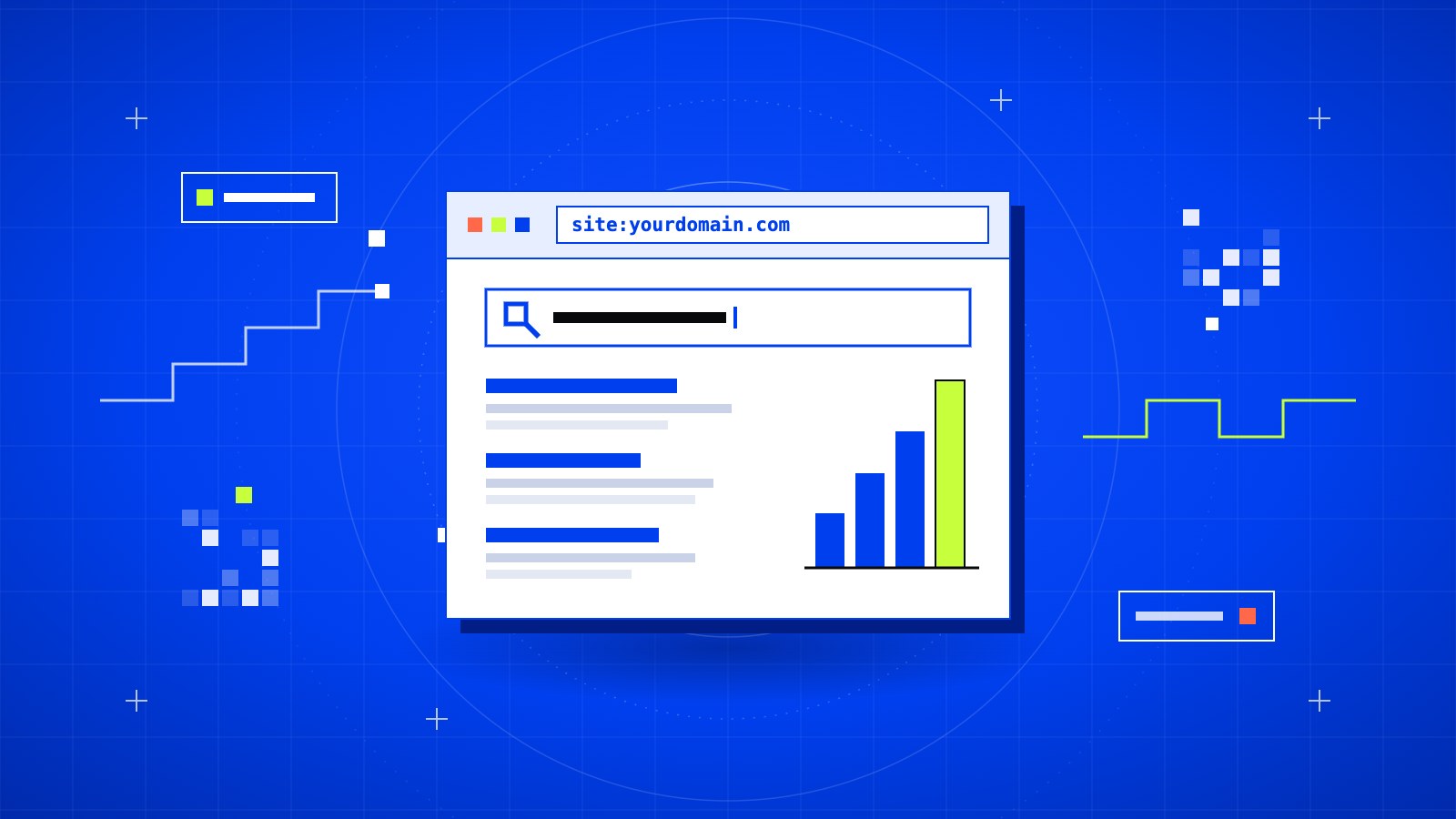
Type this into Google:
site:yourdomain.com
It lists the pages Google currently has from your site. An empty result means you are not indexed yet.
What's next
Getting indexed is step one. After that, what matters is that your pages load fast and answer what people are searching for. If the site itself is not live yet, start with Put your website online with Vercel in five minutes.