Connect your own domain to a Vercel site
Swap the vercel.app address for your own domain. Two DNS records, a short wait, and HTTPS is set up for you.
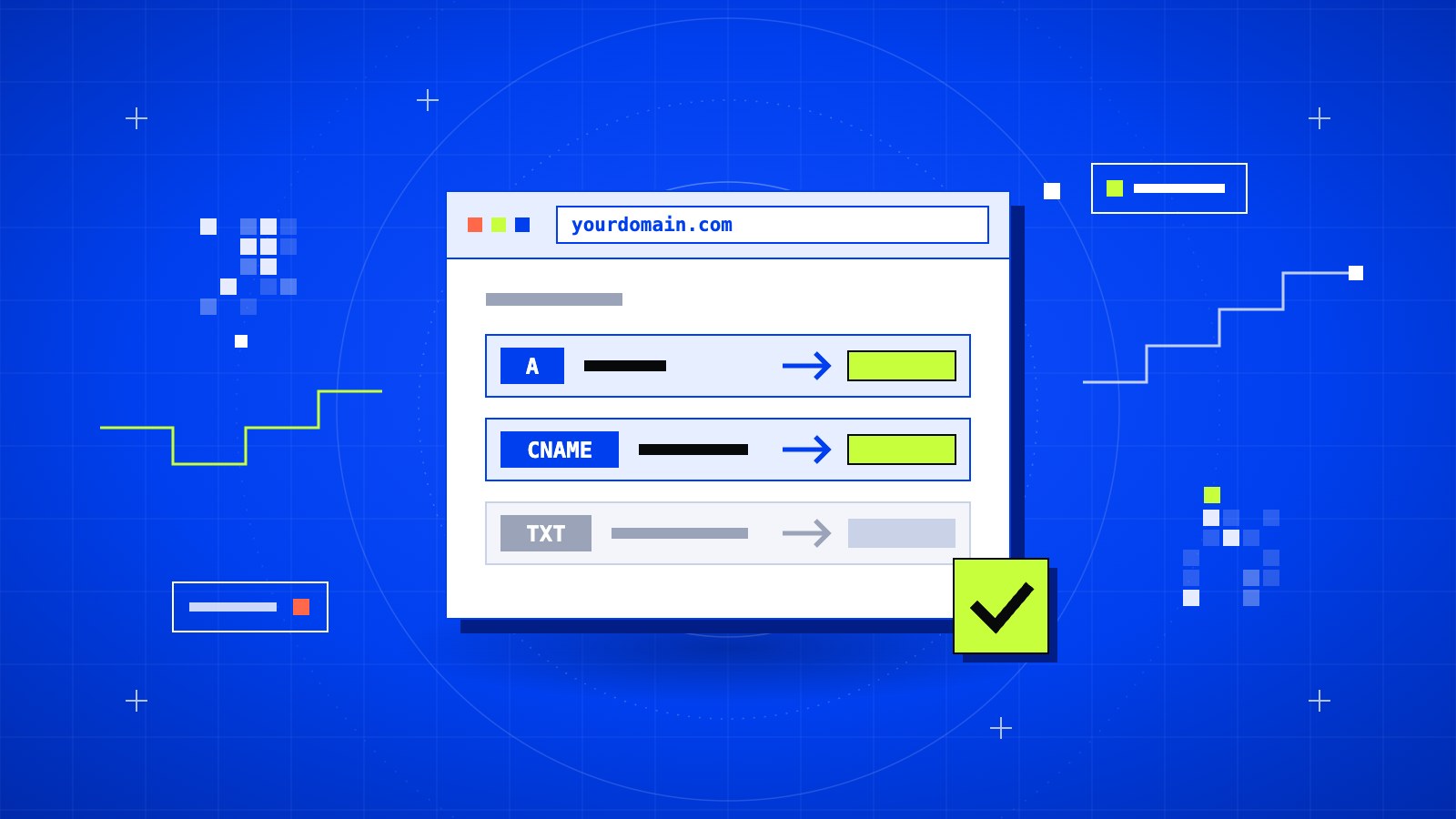
A .vercel.app link is fine while you are building. Once the site is real, you want your own name on it. Connecting a domain to Vercel takes two DNS records and a bit of patience.
In short
- Cost: only the domain itself
- Time: 10 minutes of work, then up to a few hours of waiting
- You need: a site on Vercel and access to your domain's DNS settings
Before you start
You need a site that is already live on Vercel. If you are not there yet, start with Put your website online with Vercel in five minutes.
You also need a domain. Buy it from any registrar you like. Vercel sells domains too, but you don't have to buy it there.
01Add the domain in Vercel
Open your project and go to Settings → Domains. Type your domain, like yourdomain.com, and click Add.
Vercel suggests adding both yourdomain.com and www.yourdomain.com, with one redirecting to the other. Say yes. People type both, and you want both to work.
02Copy the DNS records
Vercel now shows the records it needs. There are usually two:
- An A record for the root domain. The name is
@and the value is an IP address. - A CNAME record for
www. The value is a Vercel address.
Note
Copy the exact values from your own screen. Vercel changes them from time to time, so don't trust numbers from an old tutorial, including this one.
03Add them at your DNS provider
Log in to wherever your DNS is managed. That is usually your registrar, or Cloudflare if you moved your nameservers there.
Find the DNS settings and create the two records from Step 2. If the form asks for TTL, leave it on automatic.
Then look for old records that point somewhere else. Delete any other A or AAAA record for @, and any other record for www. Two records fighting over the same name is the most common reason this step fails.
Heads up
Using Cloudflare for DNS? Set these two records to DNS only, the grey cloud. With the orange cloud on and the wrong SSL mode, visitors get stuck in a redirect loop. Our Cloudflare SSL guide explains the modes.
04Wait for the green check
Go back to Settings → Domains in Vercel. At first the domain says Invalid Configuration. That is normal while DNS spreads across the internet.
It often turns valid within a few minutes. Sometimes it takes a few hours. Once it does, Vercel creates the SSL certificate by itself, so https:// works without any extra setup.
Tip
Want to see what the internet sees right now? Run
dig yourdomain.com +shortin a terminal. When it prints the IP from Step 2, you are close.
05Choose the main address
Decide which version is the real one: with www or without. In the domain list, edit the other one and set it to redirect to your choice.
It doesn't matter much which you pick. What matters is that you pick one, so Google and your visitors always end up on the same address.
If it stays invalid
- Still invalid after a day: compare your records with Vercel's screen again. One wrong character is enough.
- Works without
wwwbut not with it: the CNAME record is missing or mistyped. - Vercel asks for a TXT record: the domain was used on another Vercel account before. Add the TXT record it shows to prove the domain is yours.
- The old site still shows up: your browser is remembering the old address. Try a private window or your phone's mobile data.
What's next
Your site is on your own domain, with HTTPS. The next job is making sure people can find it. Read Get your new website on Google with Search Console.